
Template Gallery
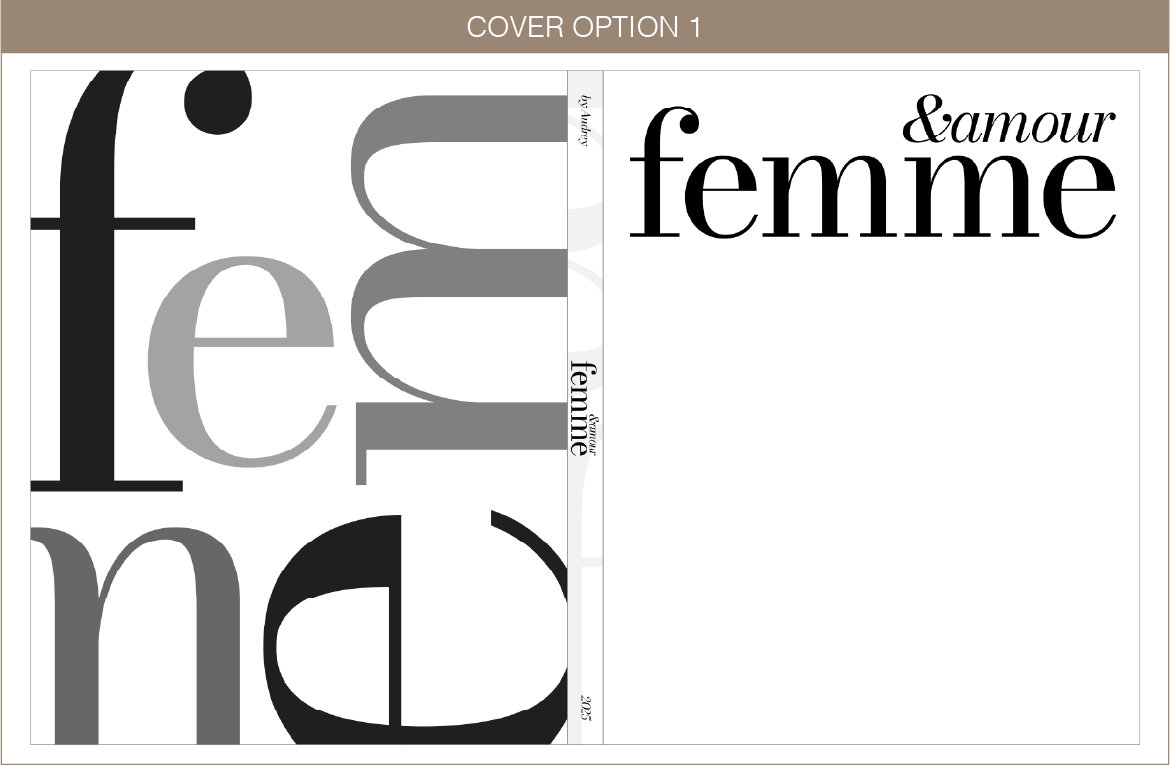
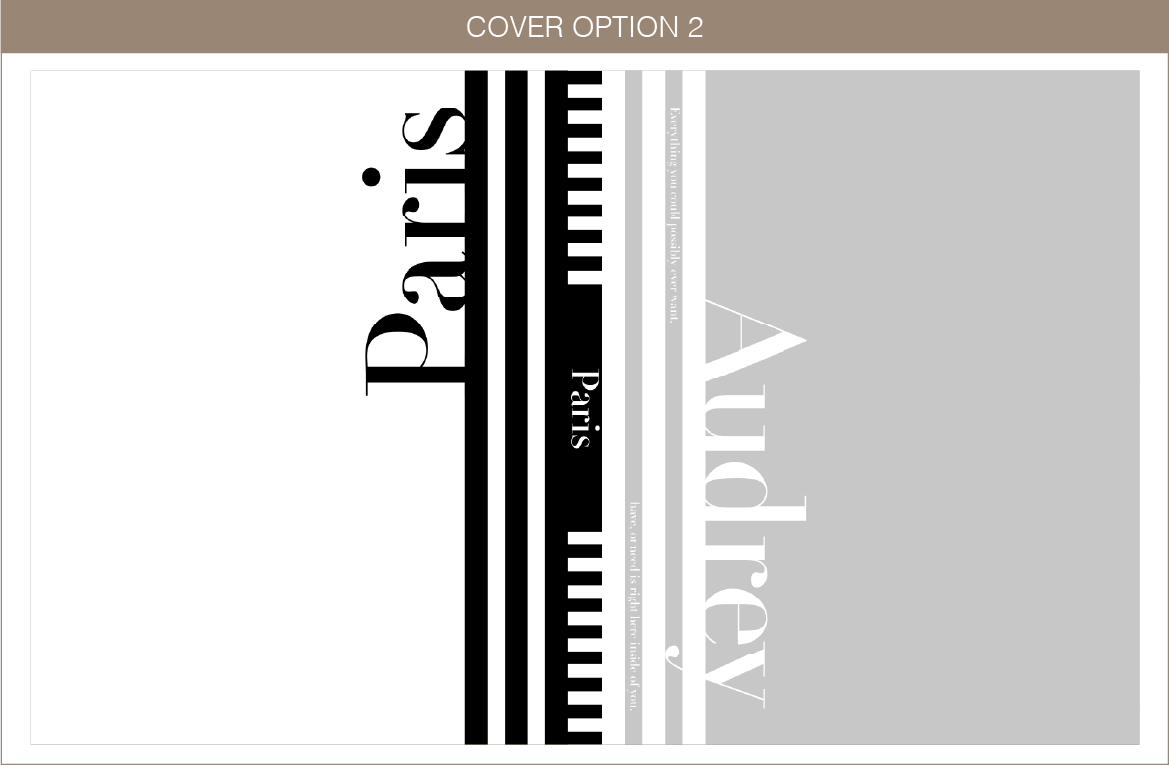
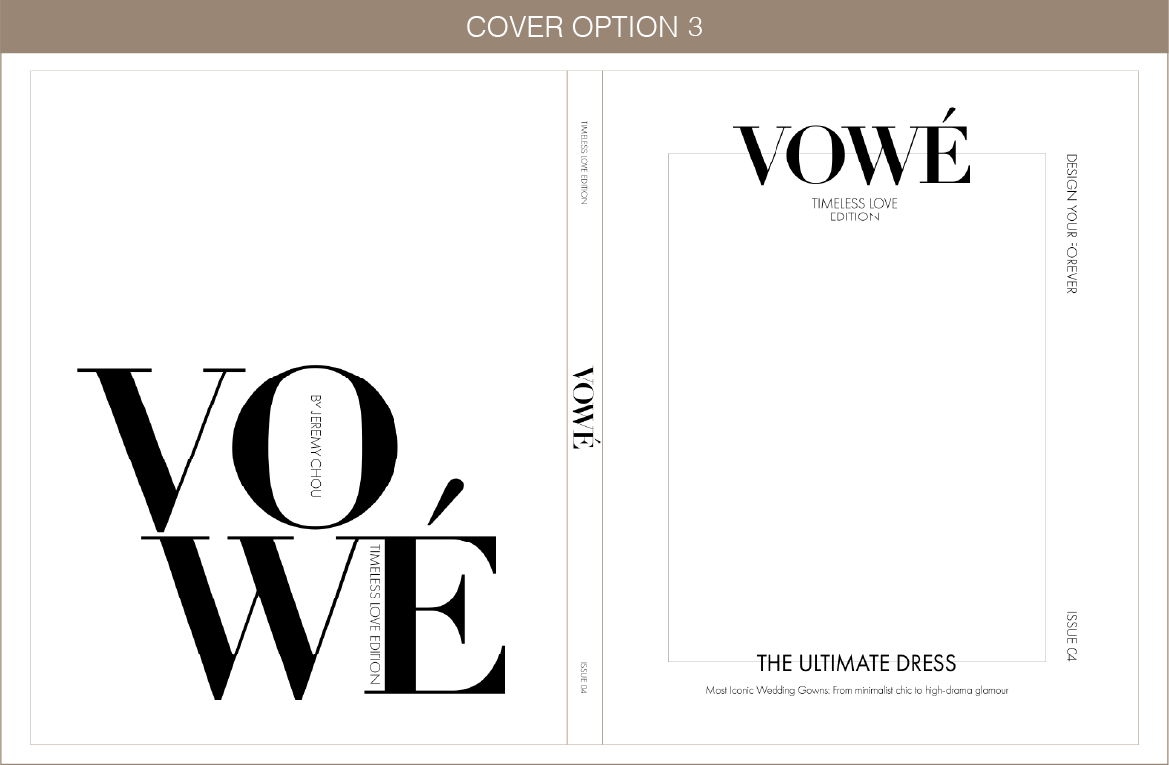
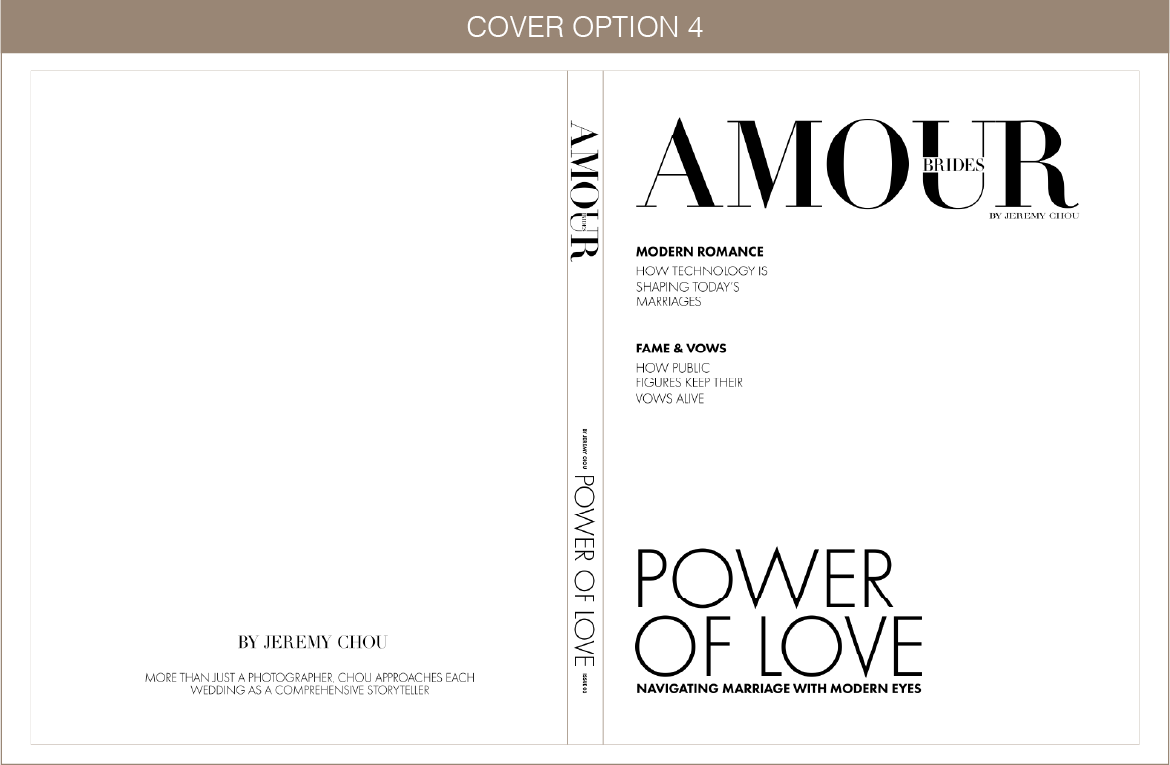
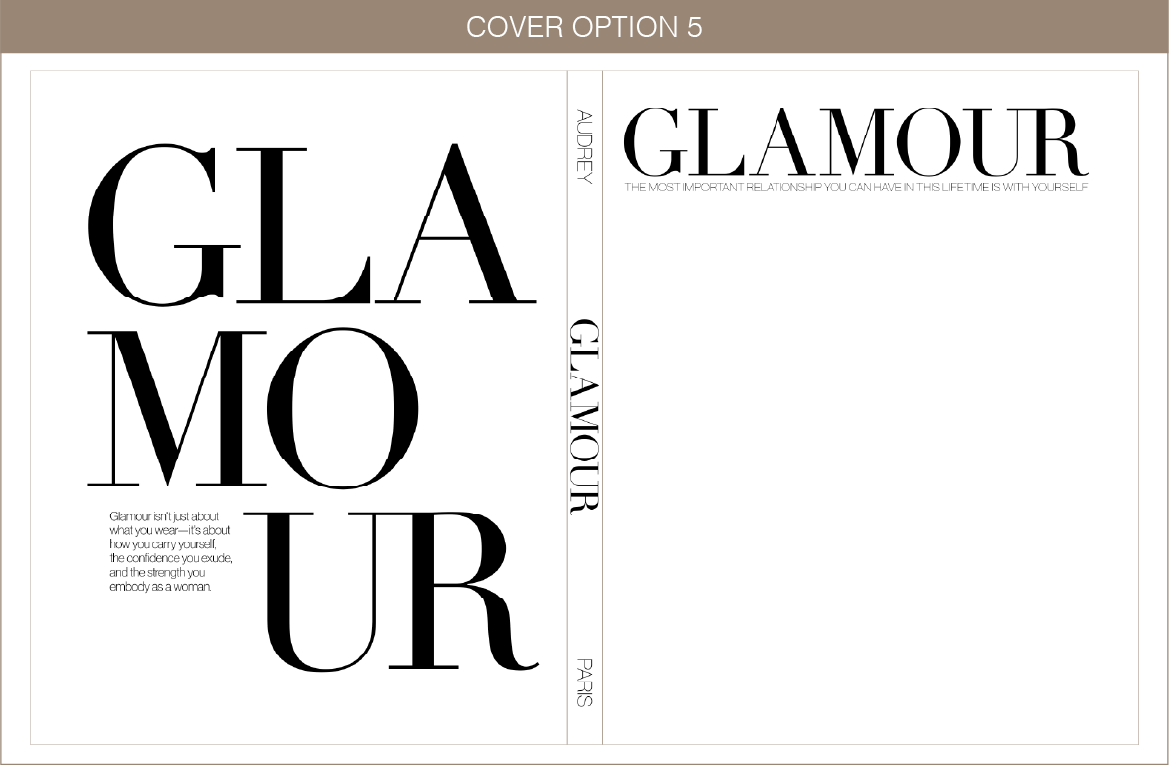
EDITORIAL COVER
TEMPLATES
Instructions
How to Use
Our Templates
Please review the visual guides to understand how to design, submit, and what to expect as a final result.
Click Read More for detailed instruction.

1. Design Setup
Use guides for reference. The red line marks the wrap area and will not be visible. Your file is 1" larger on all sides. Extend backgrounds beyond the red line, as this area will be wrapped around the cover edges.

2. What You Submit
Export your design following the instructions in the template. The template includes the required 1" bleed on all sides—your design may appear larger, but this area will be wrapped during production.

3. Final Product
After production, the outer 1" (red area) is trimmed and wrapped around the cover edges. Your final design will match the area inside the red line, with all guides removed and no extra edges visible.
1. Design Setup
Use guides for reference. The red line marks the wrap area and will not be visible. Your file is 1" larger on all sides. Extend backgrounds beyond the red line, as this area will be wrapped around the cover edges.
2. What You Submit
Export your design following the instructions in the template. The template includes the required 1" bleed on all sides—your design may appear larger, but this area will be wrapped during production.
3. Final Product
After production, the outer 1" (red area) is trimmed and wrapped around the cover edges. Your final design will match the area inside the red line, with all guides removed and no extra edges visible.
Read More...
Templates
You can follow the structure of our templates as provided, or customize them to suit your preferences. Feel free to move elements, adjust layouts, and change colors as needed. If modifying templates, please continue to follow the proper print guide lines. If the received file does not adhere to our print guidelines, we will require a reprint at an additional charge.
Color Guide ( Image 1)
Refer to Image 1. Each color line has a specific role:
Blue — Safe Area: Keep all important elements (text, logos, faces) inside this zone.
Yellow — Fold Line: Shows where the album folds (reference only). Visible spine indent only, all elements around this line are still visible.
Green — Spine: Indicates the spine area.
Red — Trim / Extension Area / Wrapping Area: Most important area. Please read below.
RED / Extension Area
This area is not visible in the final product but is essential for production.
Extend all backgrounds, colors, and edge elements beyond this line for a clean finish.
If needed, use Generative Fill or Content-Aware Fill in Photoshop to extend images.
Important:
Keep text, logos, and key elements away from the red line to avoid trimming issues