

Album
Design
Design
Your
First album
Create designs using your own imagery that will inspire your clients to order their own personal heirlooms and experience the craftsmanship of a finished album.
Album Design software
These industry leading album design tools (Fundy Designer, Smart Albums, Album Stomp) offer all of Dekora’s guidelines, trim and safety settings built right in for easy and fun designs in minutes.
other Design Options
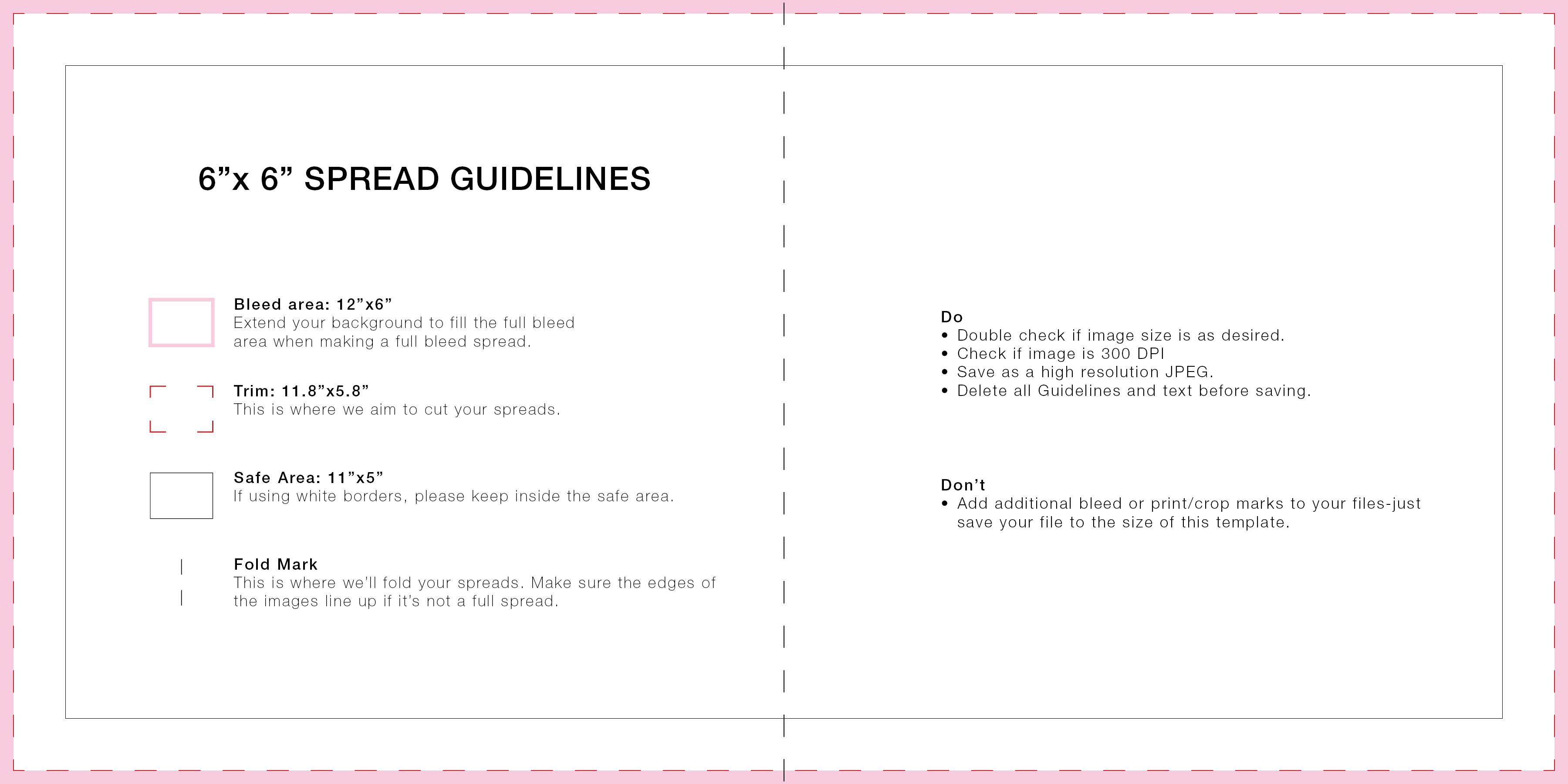
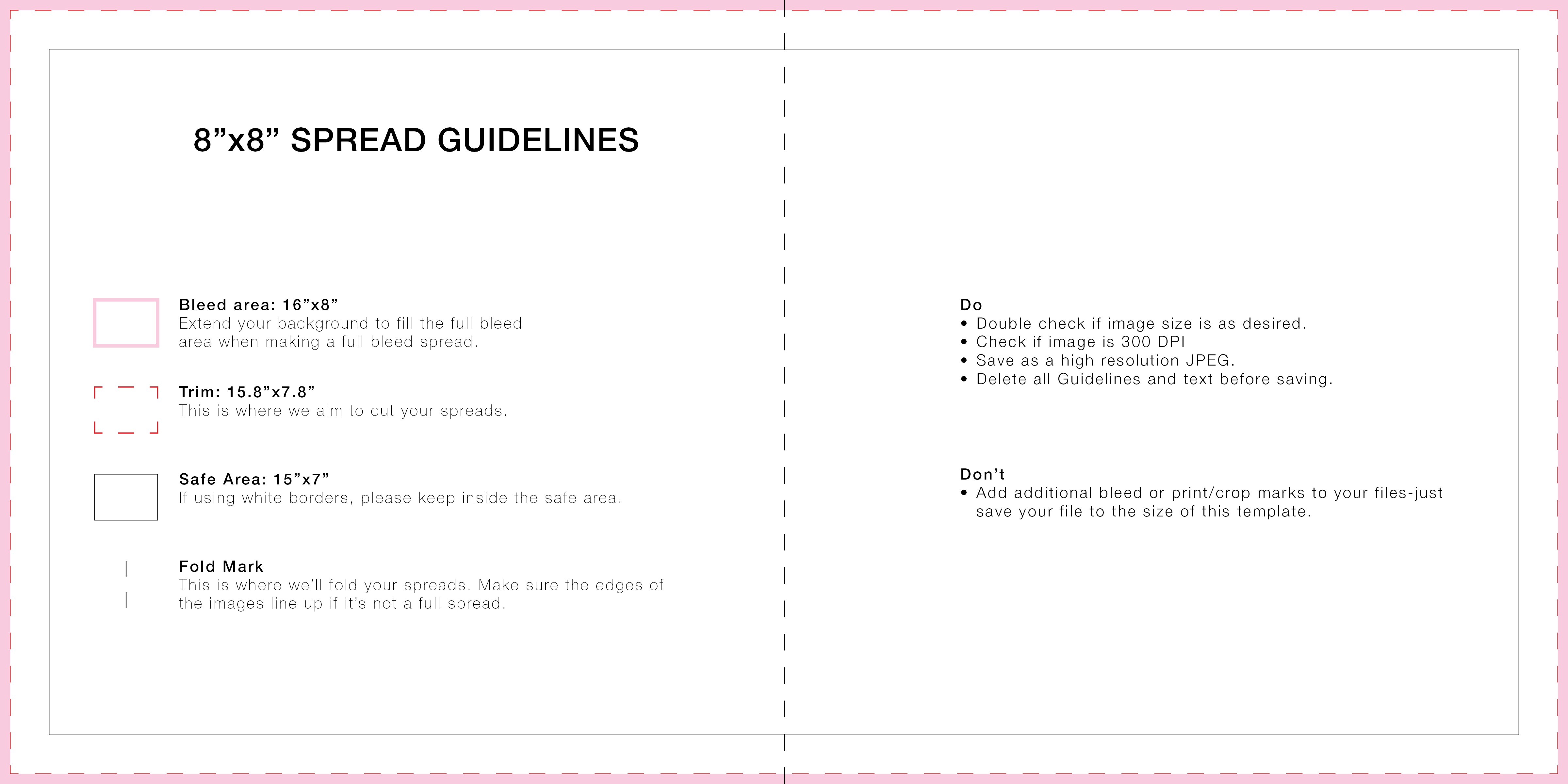
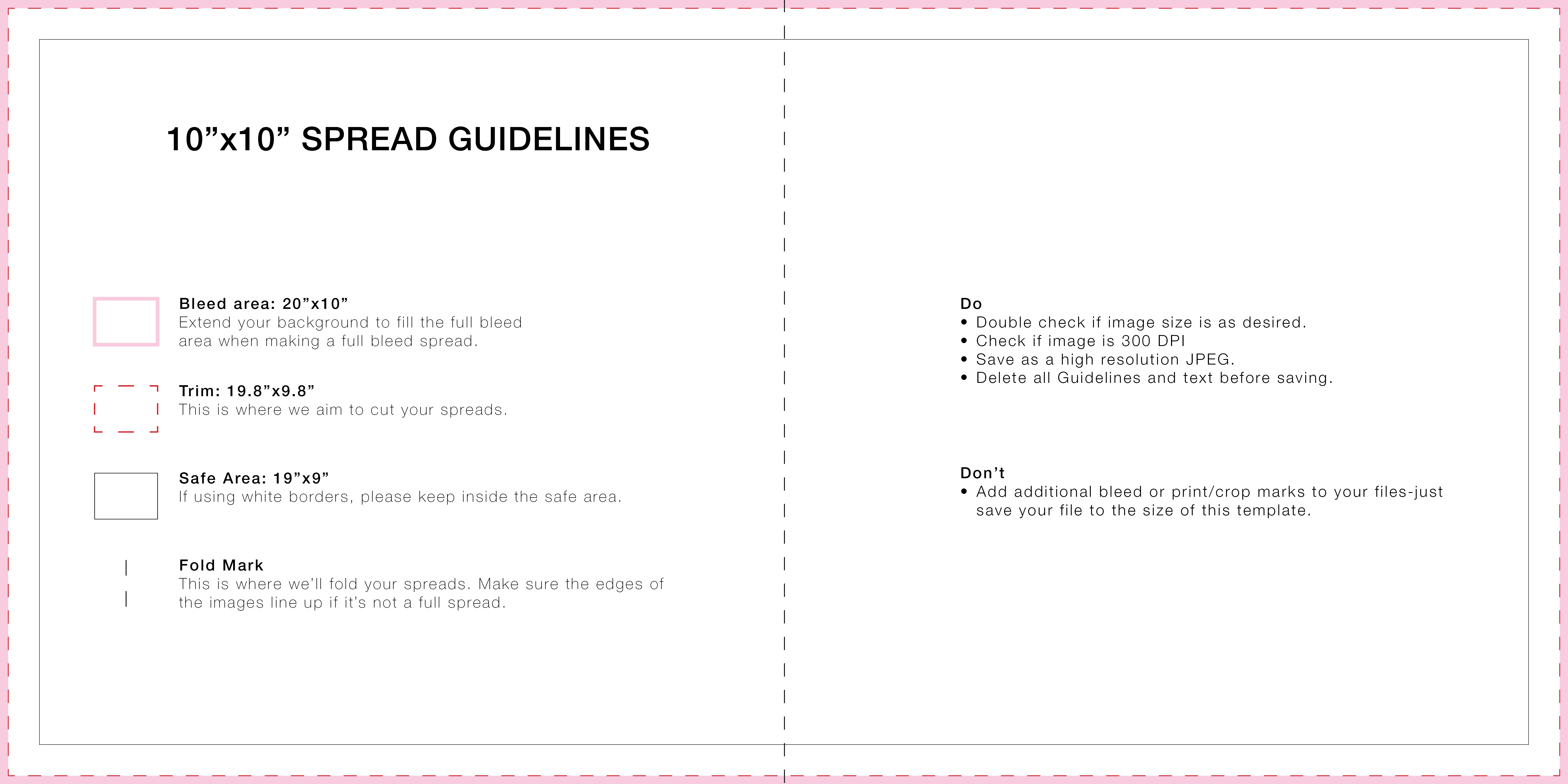
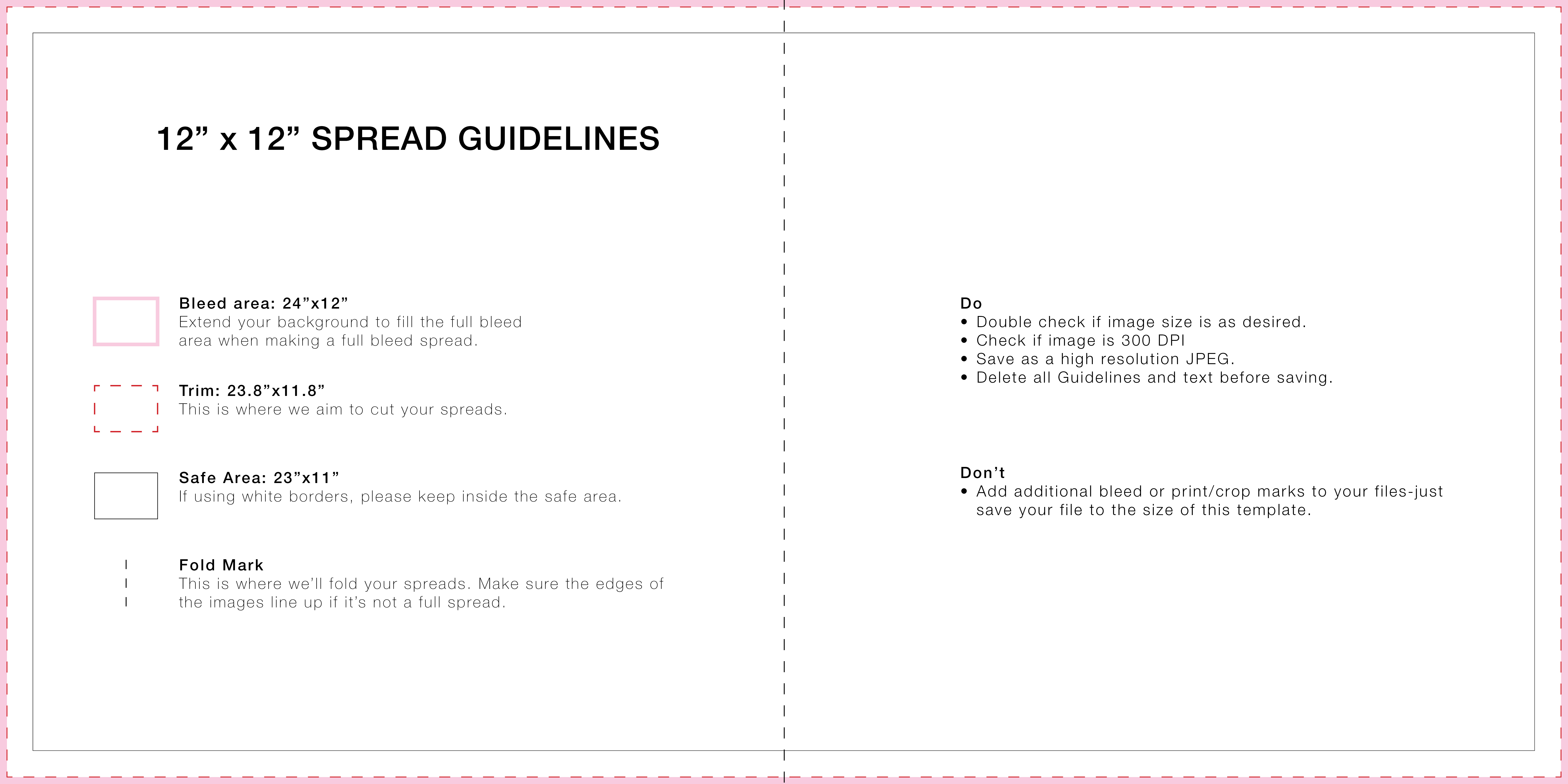
If you choose to forego these services, you can instead use design software such as Adobe Photoshop or Adobe InDesign. In this case, please refer to the spread guidelines chart below to ensure your layout is set up correctly. Additionally, all album designs must follow Dekora’s specifications and may be subject to review prior to production.
Album
Design
Tools





Easily create album spreads using software that supports both custom layouts and pre-designed templates. In addition, Dekora’s print guidelines are integrated to ensure accuracy and consistency.
sizes
Album design
Dimensions

Prepare
Your
Album Files
Prepare your files with care to ensure the best possible final album. Proper bleed, trim, and safety margins help preserve image quality and craftsmanship from design to production.
File Requirements
Bleed / Trim: 0.1″–0.25″ within the final image dimensions
Edge Safety: 0.375″ within the final image dimensions
File Requirements: All files must be saved at 300 DPI in JPG, sRGB color space.
File Transfer: Use one of these efficient and free file transfer methods: Dropbox, WeTransfer, Google Drive
You Ask
We Answer
1. What album design software should I use?
We recommend industry-leading tools such as Fundy Designer, Smart Albums, SpreadU and Album Stomp. These platforms include Dekora’s trim, bleed, and safety guidelines built in, allowing you to design quickly and accurately.
2. Can I design my album in Photoshop or InDesign?
Yes, you can use Adobe Photoshop or Adobe InDesign if you prefer full creative control. However, you must follow Dekora’s spread guidelines to ensure your design meets production requirements.
3. Do I need to follow specific design guidelines?
Yes. All album designs must follow Dekora’s specifications, including bleed, trim, and safety margins. In addition, all files may be reviewed before production to ensure quality and accuracy.
4. Are templates available for album design?
Yes. Templates are available in JPEG, PSD, INDD, and IDML formats. These templates include built-in guides for bleed, trim, and safety, making it easier to create professional layouts.
5. How do I submit my album files?
You can upload your files using file transfer services such as Dropbox, WeTransfer, or Google Drive. These platforms allow for quick and reliable file sharing.



%20Template.jpg?_t=1580753854)
%20Template.jpg?_t=1580753854)
%20Template.jpg?_t=1580753853)
%20Template.jpg?_t=1580753853)
%20Template.jpg?_t=1580753853)
%20Template.jpg?_t=1580753854)
%20Template.jpg?_t=1580753854)